Hi @punnlert, thanks for the detailed report, it really helps.
These two facts together are very informative. The body tracking data path and the image display path in the Unity plugin are independent: skeletons come from the SDK as data structures, while the image is copied GPU-side into a Unity texture, drawn on the Frame quad under ZED_Rig_Mono -> Camera_Left, rendered into the ZEDView render texture, and finally displayed by the Virtual Canvas prefab. Since the avatar is animated correctly, the camera is open and the stream is being received; the problem is almost certainly in the image texture/rendering chain, not in the streaming input. Your C++ receiver test confirms this too.
Here is what I suggest checking, in order:
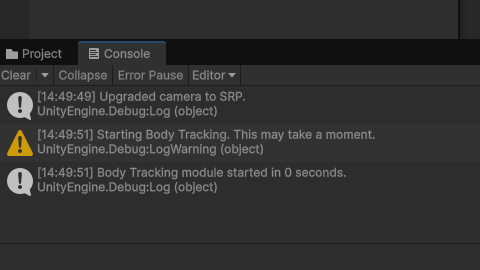
1. Unity Console at startup
Please look for errors or warnings right after the loading icon disappears (shader/material errors, texture creation or registration failures). That log is usually enough to identify the exact cause.
2. Graphics API
The image sharing between the ZED SDK and Unity requires Direct3D11 on Windows. Go to Edit -> Project Settings -> Player -> Other Settings, uncheck Auto Graphics API for Windows, and make sure Direct3D11 is first in the list. If you are on a laptop with hybrid graphics, also force Unity to run on the NVIDIA GPU from the NVIDIA Control Panel; the SDK runs on the discrete GPU and the texture copy fails silently if Unity renders on the integrated one.
3. URP materials
Even when the Render Pipeline Converter reports success, the ZED frame material is a frequent exception. Select ZED_Rig_Mono -> Camera_Left -> Frame and verify that the assigned material is the _URP variant, as described in the note at the bottom of our Getting Started with Unity page. Do the same for the quad of the Virtual Canvas prefab.
4. Render texture wiring
As per the Body Tracking tutorial, Camera_Left must have ZEDView as Target Texture, and the Virtual Canvas must display that same render texture. Also check that the Virtual View Camera has a higher depth than Camera_Left, and that no other camera in the scene is overriding the output.
5. Isolate the render pipeline from the input
Two quick tests that will tell us a lot:
- Record an SVO on the Jetson, copy it to the Unity machine, and use SVO input in
ZEDManager. If the view is still grey, the issue is in the project rendering setup and not in the streaming.
- Open the stock Body Tracking sample scene shipped with the plugin (Samples tab in the Package Manager) and run it with your stream. If the image appears there, we can compare the two scenes.
6. Version match
Could you confirm your Unity version and the version of the ZED Unity plugin you installed? The plugin must be the release matching ZED SDK 5.4, which you can double check on the Developer Center.
For reference, streaming from a Jetson to a desktop is a fully supported workflow, so your ZED X on a Jetson Orin Nano is a valid setup here: Developing with ZED X on a PC and Local Network Streaming. If at some point you only need the avatar animation and not the video passthrough, ZED Live Link for Unity is an alternative that sends body tracking data over UDP; note that it does not carry the video stream, so it would not replace the live view you are looking for. If instead you plan to extend the tracked volume later, adding a second ZED X and using our Fusion module with ZED360 gives noticeably more robust skeletons in occluded scenes.
Please post the Console log and the outcome of the SVO test, and we will narrow it down from there.
Best,
Walter